Facebook Ads Connector
Automate exports of Facebook Ads analytics data to spreadsheets, dashboards, or data warehouses with Coupler.io. Use its out-of-the-box Facebook Ads connector to turn raw data into insights that will drive your decision-making.



How to set up your Facebook Ads integration
Export data from Facebook Ads to alternative destinations


Quick start with PPC dashboards
![[do not delete] Facebook Ads dashboard image](https://static.coupler.io/templates/facebook-ads-dashboard-coupler.png)
Evaluate ad performance on Facebook with insights into clicks, costs, ad frequency, demographic and geography breakdowns to enable data-driven decisions to improve engagement, and maximize ROI.
+0


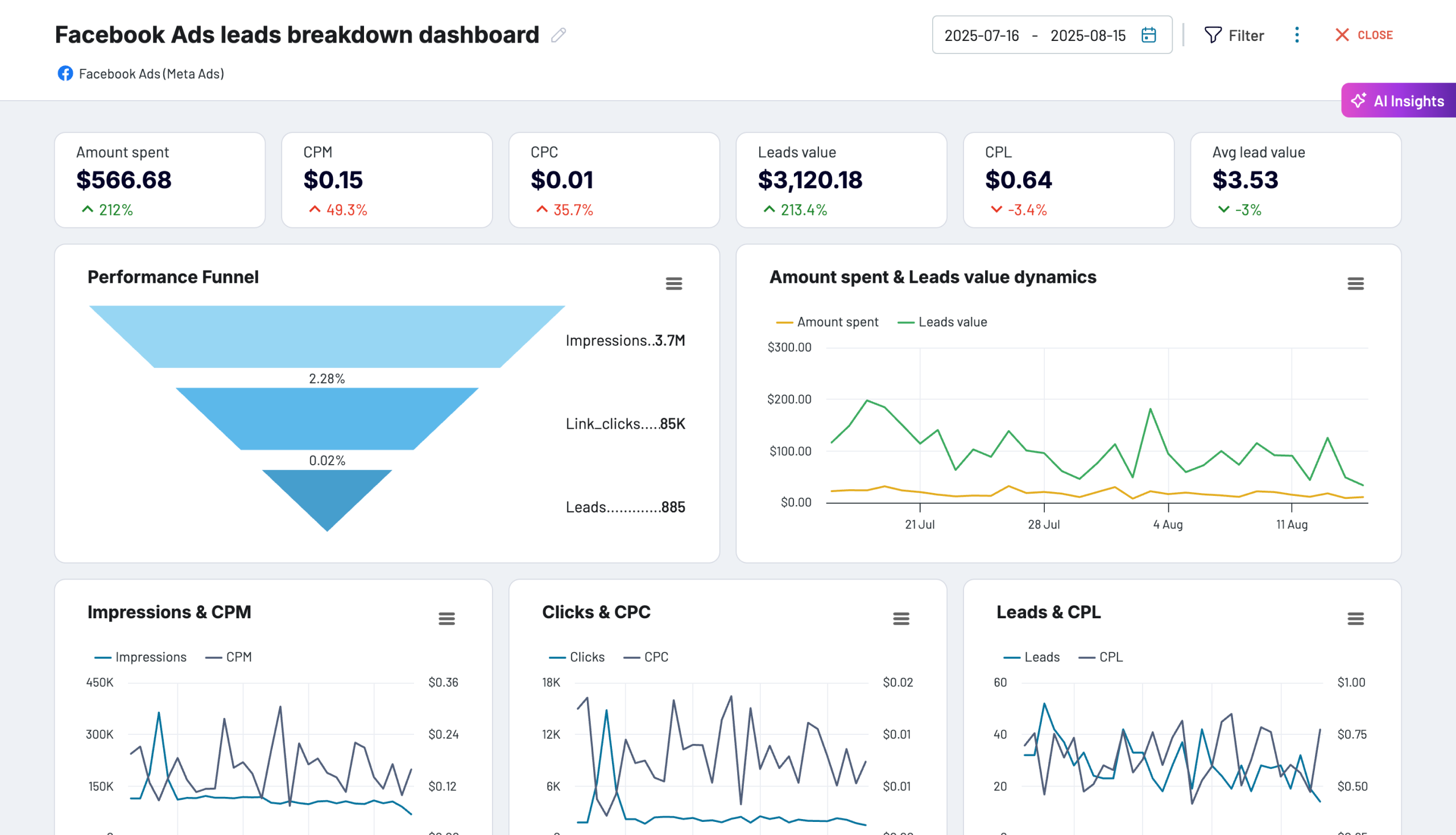
Analyze the complete lead generation funnel from your Facebook lead ads. Track how impressions convert to leads with detailed cost analysis, lead value tracking, and demographic performance insights.
+0
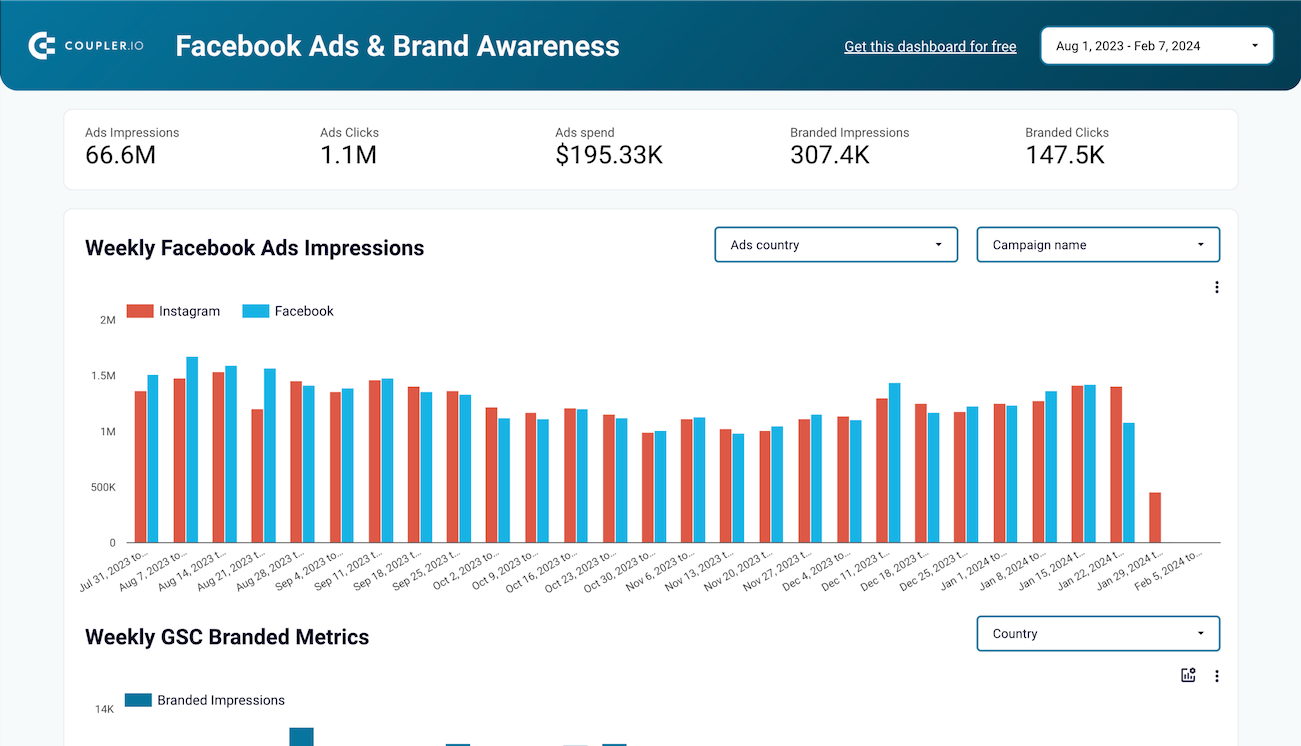
Understand how your Facebook or Instagram Ads campaigns impact brand awareness. Find a correlation between paid impressions and branded searches in Google. Check country by country with 2 simple charts to find where your Ad spend impacts the most.
 +0
+0

about your case. It doesn't cost you a penny 😉
Data set templates gallery

Analyze multi-channel campaign performance by measuring impressions, clicks, and ad spend to assess visibility, interaction, and investment impact.


Check the performance of advertising campaigns you run on different platforms and compare their outcomes to improve your creatives
Get a comprehensive overview of multiple Facebook Ads accounts
Effectively manage and optimize your Facebook advertising campaigns, reaching your target audience in a data-driven way
Learn which geography performs the best across your Facebook Ads campaigns
about your case. It doesn't cost you a penny.
What data you can export from Facebook Ads?
-
Reports and InsightsThis data category allows you to export insights into your Facebook Ads performance. You'll need to select metrics to include in your report. These include impressions, clicks, click-through rate, cost per click, and more.
-
List of Sponsored LeadsThis data category provides access to leads generated through your Facebook Ads lead forms. It contains details about user submissions, such as contact information (depending on form fields), submission time, and ad or campaign sources. You can use this data to track lead generation performance and integrate it with your CRM or sales workflows.
-
List of Ad creativesWith this data, you can export all ad creatives available in your Facebook Ads account. It includes information such as creative type (image, video, carousel), text, links, and media details. This dataset helps you review and manage the assets you’ve uploaded or created, regardless of whether they are currently being used in ads.
-
List of Ad setsGet an overview of ad sets to track and analyze their efficiency from launch. This data category provides information about ad set statuses, optimization goals, remaining budget, and more.
-
List of CampaignsYou can access information about each of your Facebook Ads campaigns. This view contains data about the status, stop time, objective, budget, and other details of your advertising campaigns.
-
List of AdsWith this data, you can create a detailed overview of all your ads running on the Facebook Ads platform. It contains information about ad status, bid amount, issues, and so on.
-
List of Ads with ad creativesThis data category provides details about ad creatives specifically linked to active or past ads. Unlike the general list of creatives, it only includes the assets actually used in advertisements. You can analyze creative performance together with ad metrics, allowing you to see which images, videos, or texts are driving results.
-
List of ActivitiesThis data category provides the ad account's activity/audit log - who changed what and when (e.g. campaign status updates, budget changes, audience updates), across campaigns, ad sets, ads, and the account itself.
-
List of Business invoicesThis data category provides monthly invoices for bill-to legal entities on a Facebook Business, including billed amounts and the campaigns billed within each invoice.
Use the Facebook Ads connector to turn your data into meaningful reports
What is a Facebook Ads data connector all about?
When the data preparation is done, you can automate data refresh at the desired frequency. The data connector for Facebook Ads lets you do this with a few clicks. You don’t need any coding skills to operate the connector and its features. At the same time, if you have technical expertise, you can use more advanced features offered by Coupler.io, such as webhooks. They will let you trigger events after the data refresh or trigger your importers through external events.

Why use Coupler.io to collect your Facebook Ads data?

Multiple destinations

Automated data refresh

Data blending
Connect similar PPC apps and get data in minutes